Turning off Mail Categories on iPhone, iPad, and Mac is useful for people who want a clean inbox. Apple introduced categories in iOS 18.2 and macOS updates with Apple Intelligence.
These categories sort emails automatically. While some users like them, others find them confusing. The good thing is, you can disable or customize categories anytime.
Turn Off Mail Categories on iPhone, iPad, and Mac
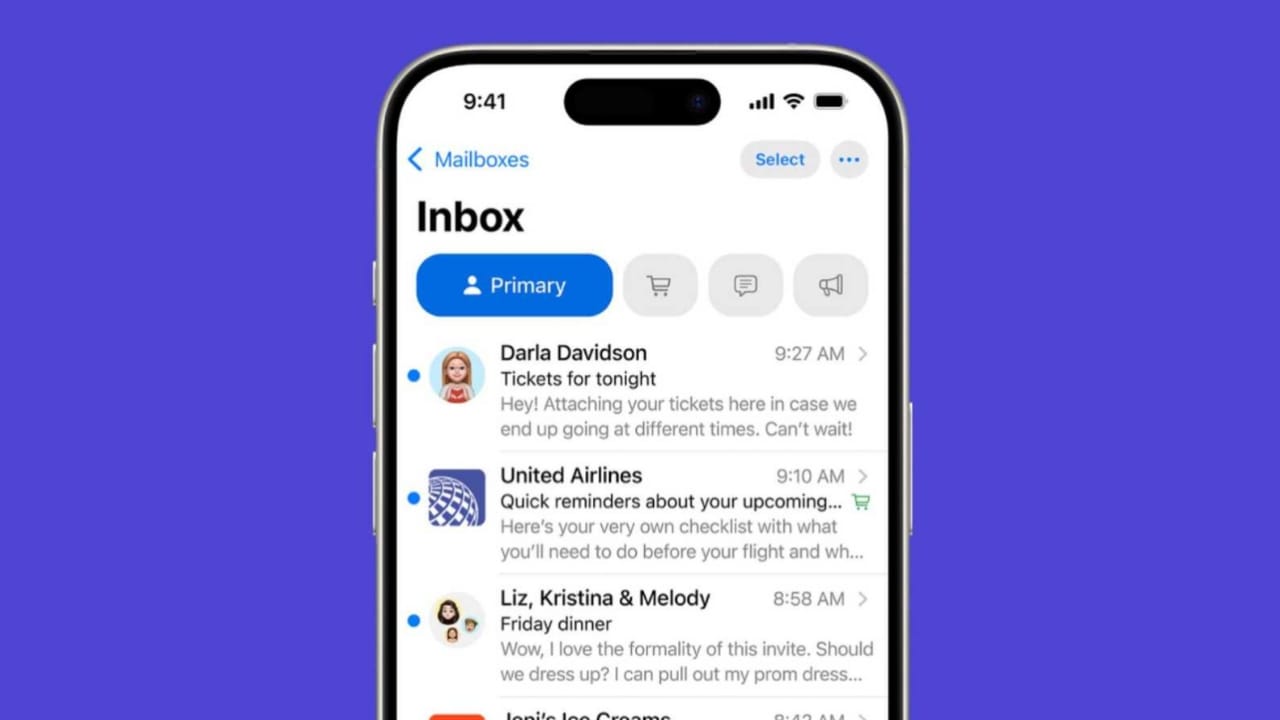
You can now organise Apple Mail in different categories such as Primary, Transactions, Updates as well and Promotions. Primary stores personal and urgent messages. Transactions hold receipts, orders, and confirmations.
Updates include newsletters and social alerts. Promotions, store offers, and back anytime. If you want to disable these categories, head over to the Mail app, click on the three-dot (…) button, and choose the List View.
This immediately turns off all categories and restores the classic unified inbox. If you ever want them back, repeat the same process and choose Categories. This way, you can switch between categorized and uncategorized inbox views whenever needed.
Customize Mail Categories on iPhone, iPad, and Mac
It happens sometimes that you get emails in the wrong folder due to Apple Intelligence. This can make important messages harder to find. Luckily, you can change categories manually.
For emails inside Primary:
- Open the email.
- Tap the Reply arrow.
- Choose Categorized Sender.
- Select your preferred category or choose Automatically.
For emails inside Transactions, Updates, or Promotions:
- Open the email.
- Tap the (…) menu.
- Select Categorize Sender.
- Pick the correct category or use Automatically.
It keeps your Apple device’s inbox organized in the same way you desire. It also prevents losing important emails in the wrong folders.
Use Digest View in Mail Categories
Mail also includes a tool called Digest View. This feature shows all emails from one sender together. It helps you find older messages without using search.
To use Digest View:
- Open any category, like Transactions or Updates.
- Select an email to see grouped messages.
- Scroll through past emails from that sender.
- Use the “arrow” button to switch to all mail view.
This is useful for tracking receipts, orders, and newsletters. However, Digest View is not available inside the Primary category.
The Final Words
Turn off Mail Categories on iPhone, iPad, and Mac if you prefer a simple inbox layout. Categories help organize messages, but they can also confuse. Thankfully, disabling them is easy using List View.
You can restore categories anytime or customize them manually. With options like Digest View, Apple gives users complete control over their email experience.