
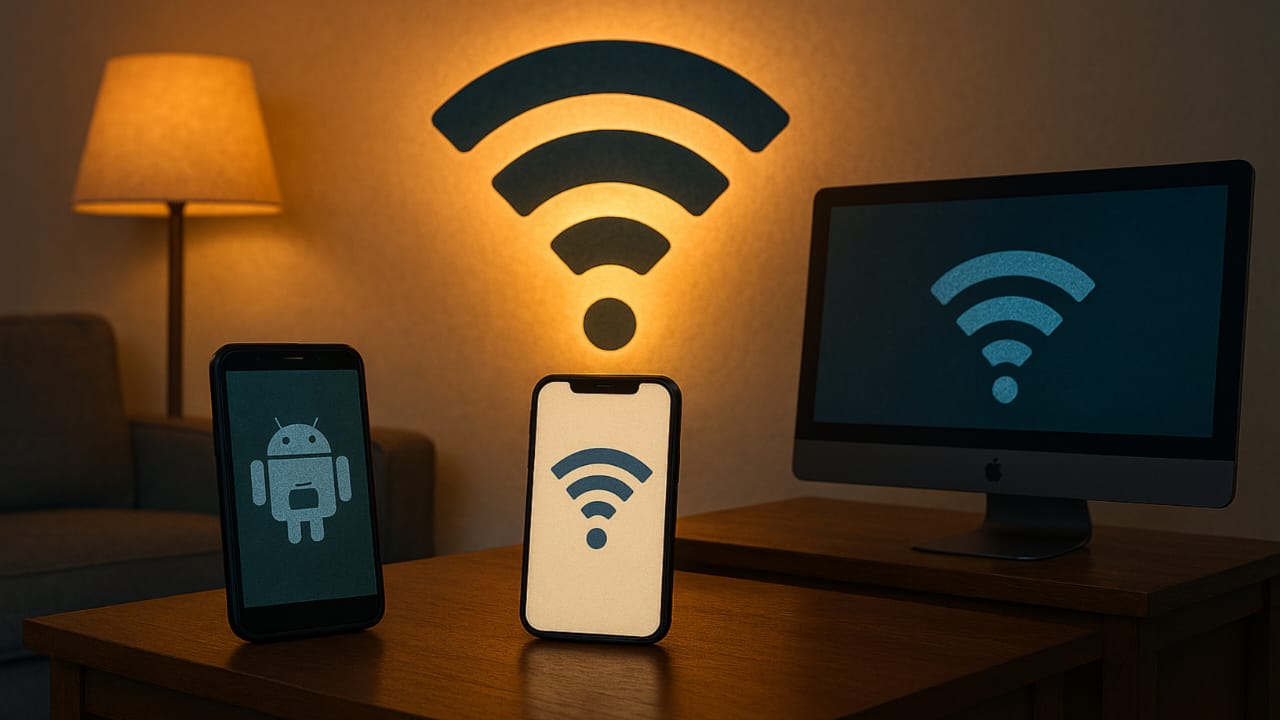
Connecting Wifi on Android, iPhone, and PC is very useful. Every device today needs Wifi for browsing, calls, and file sharing. A stable connection helps work faster and keeps all files synced.
Here, I will help you set up Wifi on Android, iPhone, as well as PC. We also explain hotspots, apps, cloud, and transfer methods easily for everyone.
Key Takeaways:
- Set up Wifi on your Android, iPhone, or Personal Computer with ease.
- Use hotspot, apps, cloud, or Mobile Link for file transfer.
- Bluetooth and USB are good alternatives when Wifi is unavailable.
Connect Wifi on iPhone
iPhone, iPad, and iPod touch can connect to Wifi quickly. Follow these simple steps to connect:
Steps to connect to Wi-Fi on iPhone:
- Open Settings from your Home screen.
- Tap Wifi and turn it on.
- The device will automatically search nearby networks.
- Tap the network name you want to join.
- Enter the password if the network is secured.
- Agree to terms if the network requests confirmation.
- A blue tick appears after a successful connection.
- You will now see an icon (wifi signal) at the top of the screen near the battery indicator.
Tip: In case the password is incorrect, you can head over to the network administrator.
iPhones make connecting to public and private networks very simple. It is even possible to automatically connect to networks that you connected to previously, as it always saves the network information.
Connect Wifi on Android
There are multiple options to connect to Wifi, and I am pointing out here the methods you will surely use with ease:
Steps to connect to Wi-Fi on Android:
- Open Settings > Network & Internet.
- Turn on Wifi to search for networks automatically.
- Click on the desired network name as well as the password.
Create a Wifi hotspot on Android:
- Go to Settings > Hotspot / Share Internet.
- Activate the Wifi hotspot option.
- Provide a name as well as a hard and secure password for your hotspot.
- Look for the hotspot network and connect using your PC.
- Monitor mobile data usage when using hotspots.
Tip: Pixel and Nexus phones allow automatic Internet sharing via synced notifications.
Wifi hotspot helps browse on PCs when no router is available. It allows fast Internet access without complicated settings.
Set up Android to PC via Wifi
Connecting Android to PC via Wifi allows file transfer, syncing notifications, and managing content. There are several options depending on your needs.
1. Use Dedicated Apps
Apps like Droid Transfer or Android Transfer offer full control:
- Install apps on both PC and Android.
- Scan the QR code to link devices securely.
- Copy, delete, or move photos, music, contacts, and SMS.
- Transfer files in both directions without using cables.
These apps are ideal for users needing full file management with privacy.
2. Use Cloud Storage Services
Cloud storage such as Google Drive or Dropbox works splendidly well:
- Upload files from one device to the cloud.
- Access files instantly on other devices.
- Sync documents, photos, and folders automatically.
- Free plans may have storage limits.
- Privacy depends on external servers storing your files.
Cloud storage is perfect for users who switch devices often.
3. Use Mobile Link (Windows 10 & 11)
Microsoft’s Mobile Link helps connect Android to PC:
- Install Mobile Link on PC and the companion app on Android.
- Pair devices via Wifi.
- Read messages, view photos, reply to notifications, and make calls.
- Copy-paste text or images between devices.
Mobile Link increases productivity and allows easy communication from PCs.
4. Alternative Options: Bluetooth and USB
When Wifi is unavailable, use:
- Bluetooth: Pair devices and send or receive files.
- USB cable: Share Internet or transfer files faster.
Note: Some Mac devices have limitations using Bluetooth or USB for sharing.
These methods are slower but useful when Wifi is not an option.
The End Note
Connecting Wifi on Android, iPhone, and PC is now very simple. iPhone users just open Settings and join networks quickly. Android users can use hotspot, Wifi, apps, or cloud services easily.
PCs can sync files using Mobile Link or cloud storage safely. Bluetooth and USB are good alternatives when Wifi is unavailable. Following these steps ensures fast, secure, and worldwide connectivity.










Very nice