
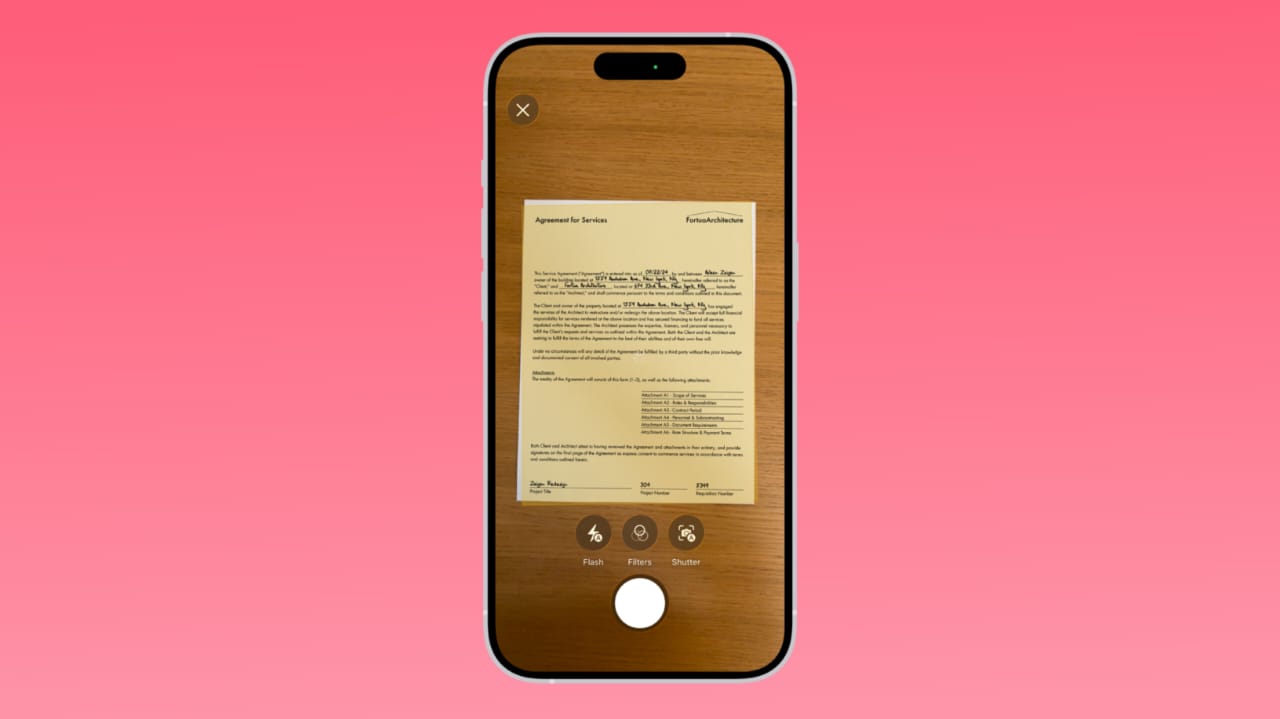
How to Scan Documents With Your Phone helps everyone today. Many people need fast digital copies for daily work. Phones make scanning simple without using large office scanners. Modern apps give clear results with only a small effort.
Android and iOS devices support scanning through built-in tools. This guide explains every needed step very clearly. Follow it to create clean, easy digital files.
Key Takeaways:
- Smartphones can scan documents easily using built-in tools on Android and iOS.
- Good lighting, clear alignment, and simple edits improve scan quality.
- Scanned files can be saved as PDFs and shared through apps like Samsung Notes, Google Drive, Microsoft Lens, and Notes on iOS.
How to Scan Documents With Your Phone on Android
How to Scan Documents With Your Phone on Android starts with proper preparation. Good lighting helps your camera capture readable pages easily. Avoid glare or shadows that affect document clarity.
Clean your phone camera lens using a soft cloth. Remove clutter from your table to keep the view clean. After preparing your space, open any trusted scanning app available.
Android phones let you scan directly inside the camera app. Place your document inside the camera frame carefully. Tap the scan option and wait until completion.
Save the image when the quality looks correct. Retake the scan if the image seems unclear. The file automatically appears inside your phone’s gallery.
Samsung Notes helps convert scanned images into PDF documents. You can open Samsung Notes and start a new note. After attaching the scanned image from your gallery, choose the Save As file option.
Select the PDF format and choose your storage folder. The final document saves instantly for future sharing needs.
Google Drive also offers simple scanning features on Android. You can open the app and select the scan feature quickly. Position your document neatly and capture the page.
Use the clean option to remove marks or shadows easily. When satisfied, save or share the file directly from Google Drive. This method works well for quick cloud access.
Microsoft Lens provides advanced editing tools for Android users. The app supports easy document capture with strong border detection. You can adjust colors and edges using simple built-in controls.
The scan saves to OneNote, OneDrive, or Word, depending on preference. This makes the app useful for people using Microsoft tools regularly.
Adobe Scan automatically creates PDF files after capturing documents. Hold your phone steady until the scan finishes correctly. Use editing tools to fix uneven borders or unclear corners.
The file saves inside Adobe Cloud unless you choose another location. This app works well for people needing fast PDF creation.
How to Scan Documents With Your Phone on iOS
How to Scan Documents With Your Phone on iOS uses the Notes app. The app is pre-installed and very simple to use. You can open the app and create a new note.
The camera tool lets you scan documents quickly and clearly. The final scan stays stored in Notes for easy access later. This makes the process fast and very convenient.
The End Note
How to Scan Documents With Your Phone makes daily tasks easier. Android and iOS devices offer trusted scanning tools. Good lighting and proper alignment create better document results. Editing tools help remove shadows and adjust borders neatly.
Scanned files can be shared through email or cloud storage. This guide gives clear steps for creating reliable digital copies. You can now scan documents anywhere, anytime, confidently.