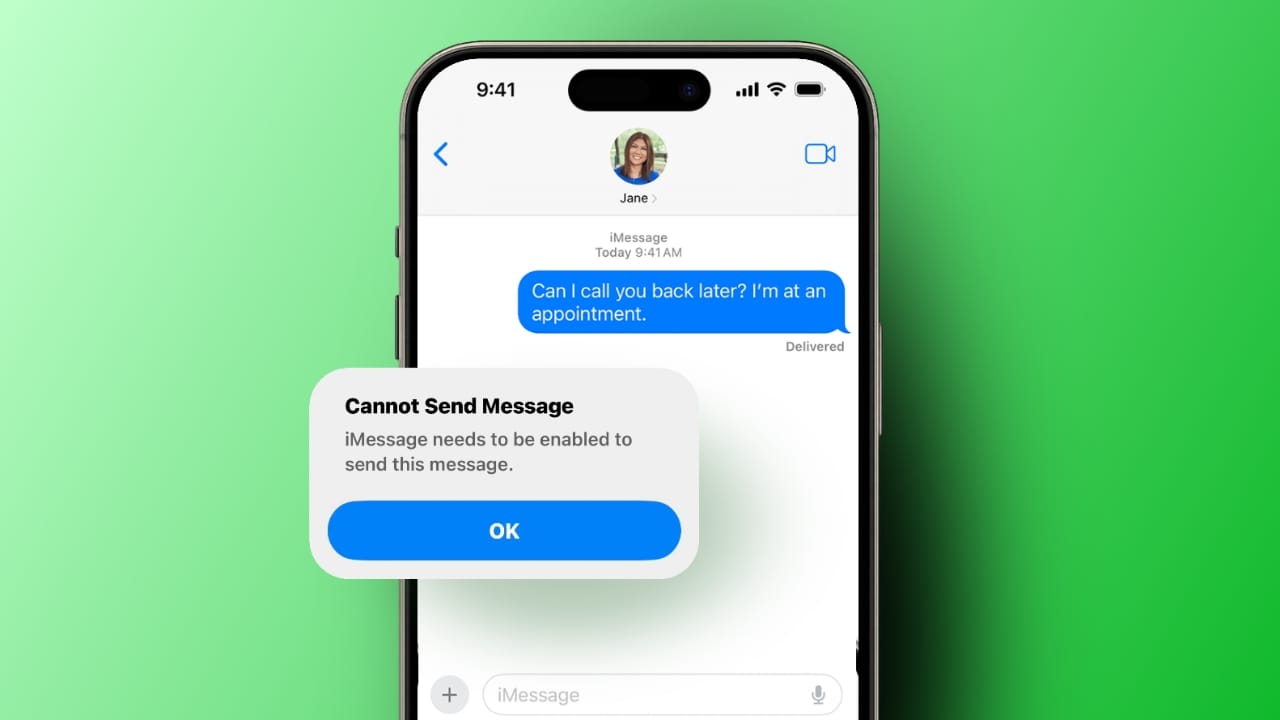
Fixing the “iMessage Needs to be Enabled” error on iPhone, iPad, and Mac becomes easy when you know the right way. This error appears when sending messages suddenly. It interrupts chats, emojis, and message effects.
Users often see this error during conversations. The issue appears even when iMessage looks active. Small setting problems usually cause this issue.
Key Takeaways:
- The Internet and settings mainly cause this error.
- Apple ID issues can stop iMessage from working.
- Simple steps fix this issue quickly.
Why “iMessage Needs to be Enabled” Error Appear
A weak internet connection stops iMessage from working properly. Wi-Fi or mobile data may be unstable.
Temporary iOS bugs can disable iMessage suddenly. Old iOS versions cause compatibility problems.
Users may turn off iMessage accidentally. Apple ID problems stop message activation. Phone number activation sometimes fails silently. Carrier setting updates can affect messaging services.
Parental controls may block message features. Rare hardware damage can cause messaging problems.
How to Fix “iMessage Needs to be Enabled” error on iPhone and iPad
You can easily fix this “iMessage Needs to be Enabled” error using these steps. Open Settings and tap the Messages option. Turn on the iMessage toggle until green. Wait if the activation message appears briefly.
Force close the Messages app once. Reopen the app after a few seconds. Turn iMessage off and on again. Restart the iPhone before enabling it again.
Check Apple system status online. Wait if the iMessage service shows an outage. Enable Airplane Mode for thirty seconds. Disable it to refresh network signals.
Restart your iPhone to clear glitches. Power off and start the device again. Delete the failed message from the conversation. Delete the entire chat if needed.
Sign out of Apple ID completely. Restart the device and sign in again. Reset network settings from the general settings. Wi-Fi and mobile settings reset here.
By enabling iMessage correctly
Ensure the device has an active internet connection. Log in to iCloud using the correct Apple ID.
Open Settings and tap the Messages option. Turn on the iMessage toggle switch. Tap the Send and Receive option next. Choose a phone number and email properly. Wait for activation to complete.
To enable iMessage on Mac, follow these steps. Open the Messages app on a Mac device. Sign in using your Apple ID. Click the Messages menu and open Settings. Open the iMessage tab from settings. Enable the Messages in iCloud option. Select email or phone number. Choose the address for starting new chats.
The End Note
Little mismatched settings or internet issues are the main reasons behind errors like these. Apple ID also plays an important role.
Follow each step carefully without skipping. Restarting fixes many temporary problems. These solutions work for most users today.