
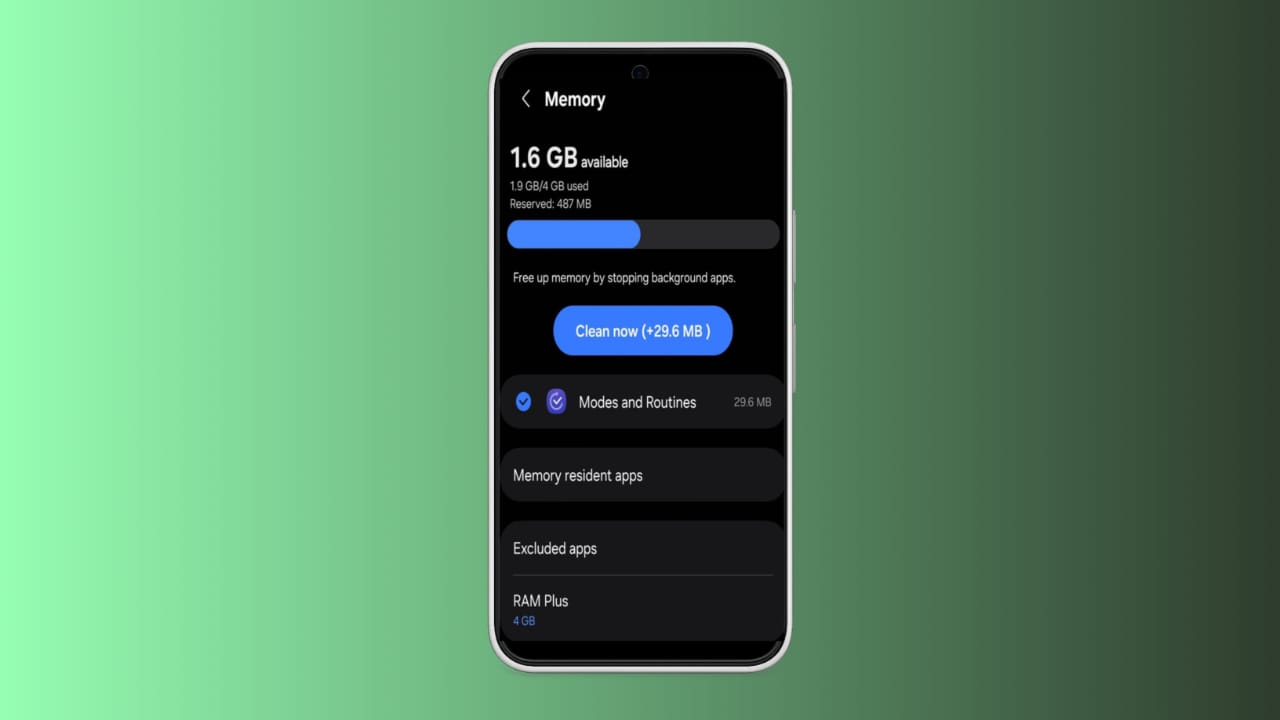
Clear RAM on your Android device to keep your phone running fast and smoothly. Over time, apps, widgets, animations, and wallpapers consume more memory. This slows down performance, drains battery, and causes random crashes.
Freeing RAM improves multitasking speed, reduces app loading time, and prevents lag. In this guide, we explore easy and practical methods to clear RAM effectively.
Key Takeaways
- Clear RAM on your Android by closing apps, disabling bloatware, and using booster tools.
- Remove live wallpapers, widgets, and animations to free memory and improve speed.
- Regular RAM cleaning reduces battery drain, prevents crashes, and ensures smoother performance.
Clear RAM on Your Android By Using Settings and Options
Your Android phone allows you to check memory usage. Go to Settings > Memory to see average RAM usage. You can view usage for hours or for one day. Tap Memory used by apps to see which ones take more memory. Sort them by maximum use for better results.
Once you find the heavy apps, force stop them. Go to Settings > Apps, select the app, and tap Force Stop. This will end all background processes temporarily. For unwanted system apps or bloatware, choose Disable. Disabled apps no longer run or consume memory. This keeps RAM free for essential tasks and daily use.
You can also use third-party booster apps. Tools like Clean Master, CCleaner, or DU Speed Booster help clean memory quickly. They include a Memory Boost feature to clear RAM instantly. These apps also let you manage auto-start programs. With one tap, you can stop apps that restart themselves automatically.
By Closing Running Features
Background apps take up a lot of memory over time. Tap the Recent Apps button to view them. Swipe away unused apps to free memory. This improves performance and reduces unnecessary pressure on RAM.
Widgets also refresh in the background and use memory. Long-press on any widget and tap Remove. Similarly, live wallpapers look attractive but use a lot of RAM. Switch to a static wallpaper to reduce background memory use. This change may look simple, but it gives noticeable performance benefits.
Animations also affect memory usage and phone speed. Unlock Developer Options by tapping Build number seven times. Then, go to Settings > Developer Options. Set Window animation scale, Transition animation scale, and Animator duration scale to “Animation off.” This removes visual effects but improves overall device performance and RAM availability.
Extra Tips
Another method is uninstalling unused apps completely. This not only clears storage but also reduces RAM demand. Some apps keep hidden background services even when not used. Removing them ensures your phone has free memory.
You can also use the Force Stop option on selected apps. This is useful when one app crashes often. Reducing multitasking load also helps save memory. Avoid opening too many apps at the same time. Fewer active apps means smoother performance and better battery life.
Regularly cleaning RAM ensures your device works efficiently. It reduces lag, prevents app crashes, and makes daily use smoother. Following these steps helps both mid-range and budget phones.
The End Note
Clear RAM on your Android regularly to avoid lagging issues. With these simple tips, your Android will run smoothly every day.