
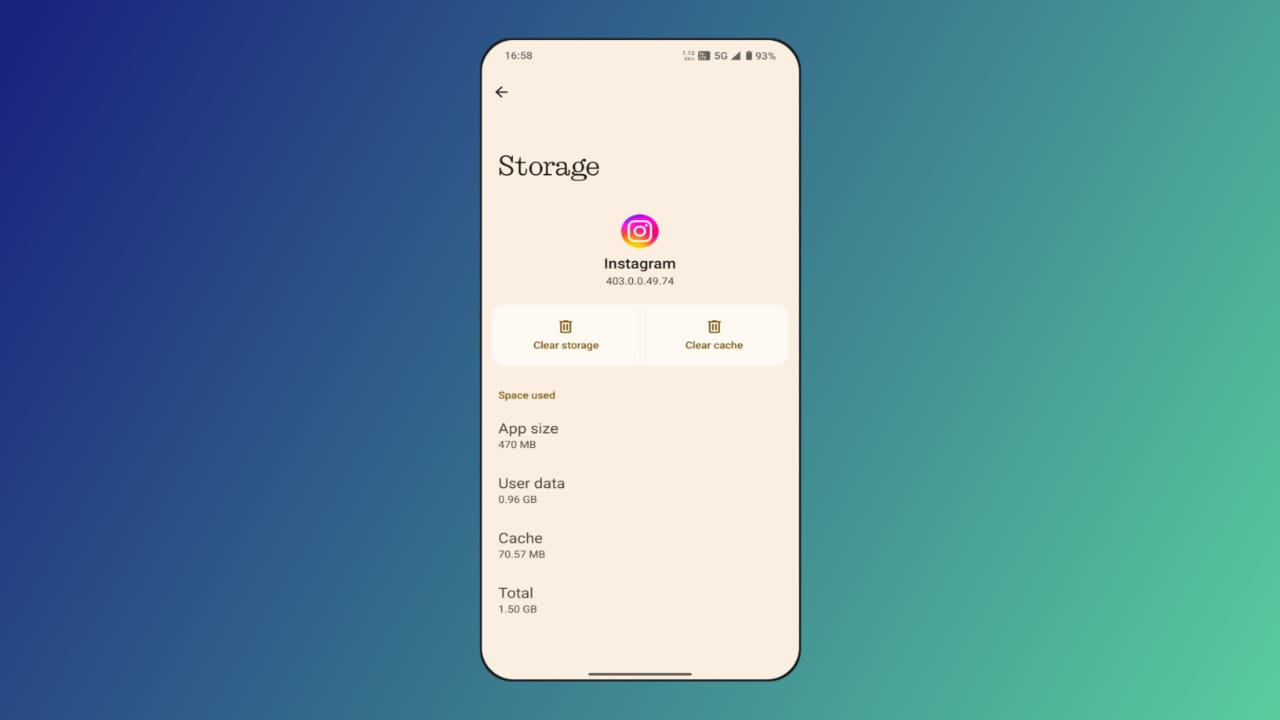
Clear the Cache on Android and iPhone regularly to maintain device speed. Cached data builds up over time and slows performance. Removing cache frees storage and improves app responsiveness.
This process also resolves minor errors and speeds up browsing. Clearing the cache is easy for both Android and iPhone.
Key Takeaways:
- Clearing the cache improves device speed and frees storage.
- Android and iPhone have simple steps to clear the cache.
- Regular cache cleaning fixes app issues and login problems.
What is Cached Data and Why Clear Cache?
Cached data stores temporary files from apps or websites. This includes images, videos, or login information to load pages faster.
Over time, too much cache can slow down devices or cause errors. Clearing the cache removes unnecessary files without deleting personal data.
Benefits of clearing cache:
- Speeds up browsing on web browsers.
- Free storage space on phone or tablet.
- Fixes app errors and login issues.
- Removes outdated website data and cookies.
Cached data is like a filing cabinet on devices. It remembers information to avoid downloading repeatedly. Clearing it occasionally ensures smooth performance and faster app usage.
How to Clear Cache on Android Devices
Clearing cache on Android can be done for both apps and browsers. Follow these steps carefully to prevent data loss.
Clear app cache:
- Open Settings and select Device Maintenance.
- Tap Memory and review the unused apps list.
- Choose the app, for example, Facebook or Instagram.
- Tap App details > Storage > Clear cache.
- Avoid Clear storage to keep personal app data.
Clear Chrome browser cache:
- Open the Chrome app on Android.
- Tap More (three dots) > History > Clear browsing data.
- Choose All time or a preferred time range.
- Check the Cached images and files box.
- Tap Clear data to finish clearing cache.
Check storage usage for apps:
- Open Settings > Storage > Apps.
- Tap the three-dot menu > Sort by Size.
- Identify apps using too much space and clear the cache.
Tips:
- Clear the cache every two months or when slow.
- Regular clearing improves device speed and stability.
How to Clear Cache on iPhone
iPhone cache is mostly in the Safari browser and some apps. Follow these steps to clear the cache safely.
Clear Safari cache:
- Open the Safari app on the iPhone.
- Tap Bookmarks > History > Clear.
- Select a time frame for clearing history.
- Tap Clear History to remove cache and cookies.
Additional tips for iPhone users:
- Clearing the cache removes temporary website files.
- Improves browsing speed and saves storage space.
- Regular cleaning prevents slow app performance.
Check app cache:
- Some apps, like Facebook or Instagram, store temporary files.
- Deleting app cache improves device responsiveness.
- Cached data removal does not delete personal content.
Things to Know After Clearing Cache
After clearing the cache, a few things may happen temporarily:
- Some websites may reload more slowly initially.
- Saved login credentials may require re-entry.
- Chrome users stay signed in on Google apps.
- Removing cache frees storage and improves performance.
Regularly clearing the cache ensures the smooth functioning of all apps. Doing this prevents slowdowns and device errors.
The End Note
Regularly clearing the cache on Android and iPhone keeps devices running fast. Removing temporary files frees memory and improves app speed. It also fixes minor errors and login problems efficiently.
Both Android and iPhone offer easy methods to clear app and browser cache. Doing this every two months keeps phones smooth, responsive, and reliable for daily use.