
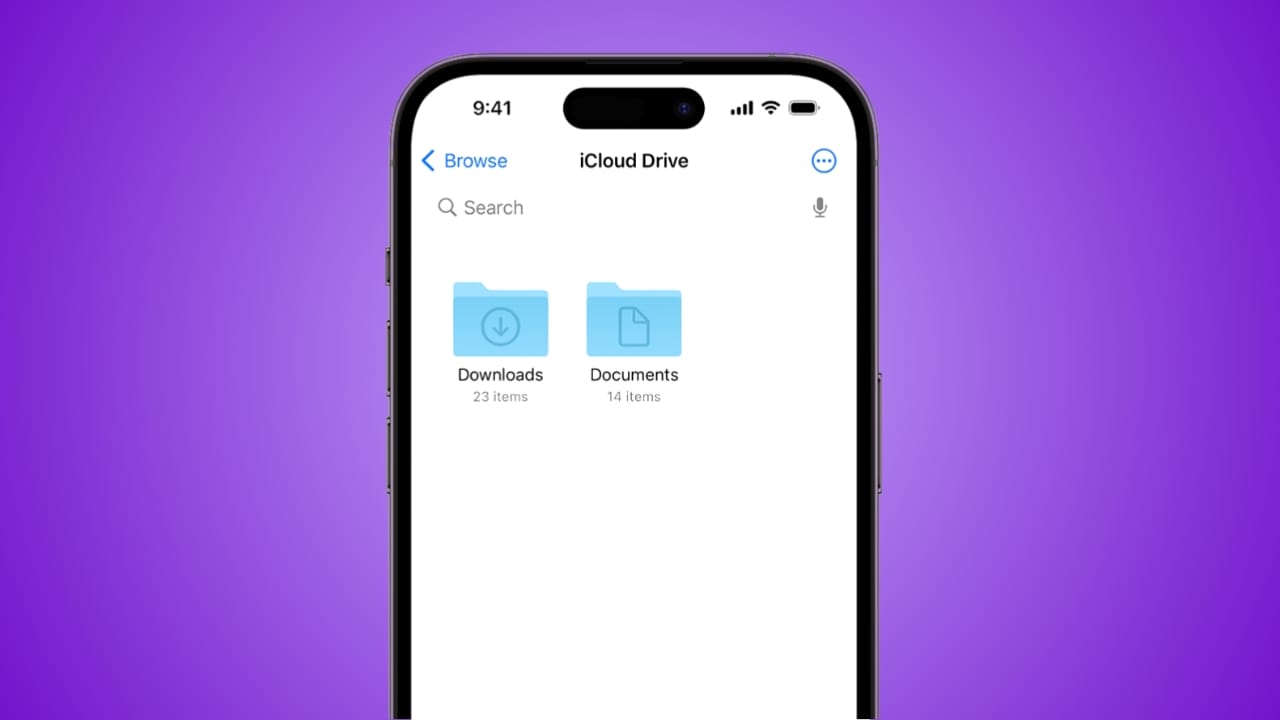
How to Clean Up iCloud Storage is a very important skill today because many users face storage issues on their iPhone or Mac. iCloud fills quickly with photos, emails, backups, videos, messages, and old files stored across devices.
This simple guide explains every method in easy words so you can clear space safely without losing important data. These steps help keep your device smooth and fast daily.
Key Takeaways:
- Check your iCloud usage to see what files, photos, and backups are filling space.
- Remove unnecessary photos, videos, emails, old backups, and large files to free storage safely.
- Use extra tools like offloading apps, deleting downloads, and moving files externally to keep devices fast and organized.
How to Clean Up iCloud Storage by Checking and Managing Space
Understanding Your iCloud Storage Usage
How to Clean Up iCloud Storage always starts with checking your usage. You can open Settings and tap your Apple ID and iCloud to see the colored chart showing what takes up space.
iCloud offers only five gigabytes free, so most users quickly reach the limit. When you see storage alerts often, you know it is time to remove unnecessary files safely.
Cleaning Photos and Videos Stored in iCloud
Photos and videos usually take the largest space because every image syncs to iCloud automatically. Many users take several shots before choosing one, which creates many duplicates.
You can delete photos manually or use CleanMyPhone, which finds similar images, screenshots, and large videos quickly.
Removing them on your iPhone also removes them from iCloud instantly. This keeps your photo library lighter and easier to manage later.
Removing Old Documents Stored in iCloud Drive
Mac systems sometimes move old documents, videos, and files to iCloud Drive to save local space. These files still use cloud storage even when forgotten. You can sign in to iCloud.com and open Drive to check stored items.
Removing old files and clearing the Recently Deleted folder frees large amounts of space. Finder on Mac also shows iCloud Drive for easy cleaning.
Cleaning Hidden Junk on Your Mac System
Your Mac often stores cached files, app leftovers, and old documents that silently sync to iCloud. These files build up slowly over time. CleanMyMac helps scan and remove these items safely.
Its Cloud Cleanup tool shows which files remain in the cloud or stay locally. This gives a clear view of everything using your storage across devices.
How to Clean Up iCloud Storage by Clearing Emails and Backups
Deleting Emails and Attachments Safely
Emails from an iCloud Mail account store large attachments that fill space quickly. You can open Mail on iCloud.com and remove unwanted messages from the Inbox, Sent, and Archive folders. Emptying the Trash is important because deleted emails still use space until removed permanently. Regular cleaning helps keep your iCloud mailbox light and organized.
Removing Old iPhone Backups Not Needed Anymore
Backups use a huge part of iCloud because they store full device data. You mostly need only the latest backup on your account. On your Mac, you can open Apple ID settings and check iCloud backups.
Removing old backups frees a large space. When a backup is deleted, the backup feature for that specific device turns off automatically.
Clearing Messages and Chat Attachments Across Devices
Messages store photos, videos, and other heavy attachments across iPhone and Mac. You can delete old conversations and clear the Recently Deleted section to free more space.
Individual conversations also allow the removal of specific photos or videos. iPhone Storage settings let you delete message photos, GIFs, and stickers safely. These steps keep your iCloud messages cleaner and lighter.
Extra Ways to Manage iPhone Storage Linked to iCloud
Using Offload for Unused Apps on iPhone
Unused apps take large space over time. The Offload feature removes the app while keeping data stored safely. You can reinstall the app anytime without losing anything. iPhone Storage settings show which apps use the most data and when they were last used.
Moving Large Files to External Storage Devices
You can connect a USB drive or card to your iPhone using a simple cable. The Files app helps move videos, photos, and documents to the drive. You can later store them on your laptop or cloud storage like Dropbox for safety.
Removing Downloaded Media and Offline Maps
Apps like Netflix store downloaded videos that use a large storage. You can remove them from iPhone Storage settings.
Some apps, like YouTube, hold hidden data that must be deleted directly inside the app. Offline maps also take space, so you can delete old maps or enable automatic map cleaning inside the Maps app.
The End Note
How to Clean Up iCloud Storage becomes very easy with regular cleaning habits and simple steps that work on every device. Removing old backups, messages, emails, and photos frees a large part of your cloud space quickly.
Managing apps, clearing downloaded media, and moving files to external drives also helps maintain storage daily. These methods protect your data while keeping your device fast and organized.