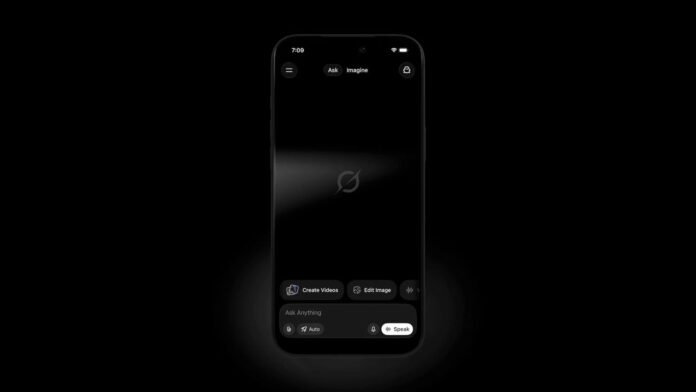
Turn Grok Voice Mode on to enjoy natural AI conversations. You can ask questions without typing every single message. Grok answers aloud using your preferred voice and speed.
However, access and usage limits can differ between accounts. This guide explains setup, voice choices, features, pricing, and fixes.
Switch Grok Voice Mode On and Start Speaking
Imagine asking Grok questions while preparing breakfast or travelling. You can do this without constantly typing messages. Grok Voice Mode makes these everyday conversations much easier. Simply speak, listen, and continue your conversation naturally.
The feature works through your existing Grok account. Your conversations, settings, and subscription sync across supported platforms. These include iPhone, Android, and the official grok.com website. You can switch between voice conversations and regular text chats.
How to Turn Grok Voice Mode On
The setup process is straightforward on supported devices. Follow the instructions matching your device below.
On iPhone and Android
- Open the Grok application on your smartphone.
- Start a new chat or open an existing conversation.
- Find the voice icon beside the message bar.
- Tap the icon to begin speaking with Grok.
- Allow microphone access when your phone requests permission.
- Ask your question and listen to Grok’s response.
You can continue asking questions without typing each message. This makes voice mode useful during everyday activities.
What if the voice icon is missing?
Older application versions may display a different interface. Open the menu and find the settings button. Check whether Voice Mode appears inside those settings. Update Grok if your application looks outdated.
On Desktop and Web
Desktop users can access Grok through their browsers. Open Chrome or another supported Chromium-based browser. Visit grok.com and sign into your account. Open a conversation and look for the voice icon.
Click the icon and allow microphone access when prompted. If voice mode disappears, check your website address first. Alternative hosts may not support every available feature. The official grok.com website is the recommended destination.
How to Change Grok’s Voice and Speaking Speed
Choosing a voice can make conversations more comfortable. Grok provides six voices inside its consumer application. You can change your selection without buying a subscription.
Follow these steps to change your voice:
- Start Voice Mode using the conversation’s voice icon.
- Tap the settings icon inside the voice screen.
- Choose your preferred voice from the available list.
- Adjust the speed slider to your preferred pace.
- Close the panel when you finish making changes.
Your selection saves automatically after changing these settings. It also syncs across supported devices using your account.
Quick tip: Try slower speech when listening to lengthy answers. A slower pace can make information easier to follow. Faster speech may suit short questions and quick exchanges.
Explore Grok’s Voices
Grok offers six distinct voices for everyday conversations. Each option has a different sound and personality. Choosing the right one depends on your listening preferences.
Which Grok Voice Should You Choose?
1. Ara: Upbeat Female Voice
Ara sounds energetic, friendly, and suitable for everyday conversations. It works well for quick questions and general assistance. Beginners can start with Ara for a balanced experience.
2. Eve: Soothing Female Voice
Eve offers a softer and more relaxing sound. It suits longer listening sessions and reading answers aloud. Eve is also the default voice for developer APIs.
3. Leo: British Male Voice
Leo is the British-accented option among the six voices. Its formal delivery suits narration and detailed summaries. Choose Leo when you prefer an authoritative speaking style.
4. Rex: Calm Male Voice
Rex sounds calm and avoids unnecessary dramatic expressions. It works well for focused tasks and straightforward assistance. Choose Rex when you prefer answers without distractions.
5. Sal: Smooth Male Voice
Sal provides a smooth and conversational speaking style. It suits natural back-and-forth discussions with the assistant. However, lengthy monologues may suit other voices better.
6. Gork: Lazy Male Voice
Gork deliberately sounds lazy and somewhat humorous. Its unusual delivery can make casual conversations entertaining. However, it may feel distracting during serious work.
Are Grok Voices and Personalities the Same?
No, voices and personalities control different things. A voice changes how Grok sounds when speaking. A personality influences how Grok responds to your messages.
Available personality presets have included several unusual options:
- Storyteller
- Unhinged
- Conspiracy
- Unlicensed Therapist
These personalities can work alongside your selected voice. Therefore, six voices does not mean six personalities.
What About Grok’s New Developer Voices?
On July 6, 2026, xAI announced 21 new flagship voices. These additions expanded its developer voice collection significantly.
Examples include Carina, Orion, Luna, Iris, and Helios. Other names include Kepler, Celeste, Sirius, and Atlas. The announced voices support at least 25 languages natively.
However, these additional voices are not available inside the app. They were introduced through developer APIs and tools. These include Voice Agent, Text to Speech, and Voice Agent Builder.
By October 2026, the API documentation listed 28 voices. Meanwhile, the consumer application still offered six choices. The original five voices also received naturalness improvements. Therefore, familiar app voices can sound better today.
Understand Limits, Pricing, and Fixes
Grok Voice Mode includes free access with usage restrictions. Paid subscriptions provide larger allowances and additional benefits. However, older online guides can describe outdated limitations.
Is Grok Voice Mode Free in 2026?
Grok provides free voice access with certain usage limits. Paid users receive larger allowances through their subscriptions. Availability may also depend on regional and account restrictions.
Some users might not see every feature immediately. This can happen when features roll out gradually. Claims about iPhones being free and Android requiring payment need caution.
Current documentation describes Grok across supported platforms. Settings and subscriptions sync between those platforms. Older reports do not establish current device-specific restrictions.
Understanding Grok Voice Usage Limits
In June 2026, xAI changed its paid usage system. Previously, different Grok products had separate daily allowances. Voice, Chat, Imagine, and Build each had individual limits.
The updated system introduced one shared weekly usage pool. Paid users can spend their allowance across Grok products. Voice, Chat, Imagine, Build, and Grok Bot share usage.
This means published daily voice-minute figures may be outdated. xAI does not publish one universal voice-minute allowance. Consumption depends on product usage and computational requirements.
How to check your remaining usage
- Open Grok and enter the Settings section.
- Select Usage to view your current consumption.
- Check the overall progress bar and Voice breakdown.
- Review your weekly reset date and time.
- Check your remaining Extra Usage Credits balance.
Reaching your weekly limit does not always stop access. You can purchase extra credits to continue using Grok. You can also upgrade or enable Auto Top Up.
Currently, extra credits can only be purchased online. Mobile purchases may become available through future updates.
Grok Subscription Plans and Voice Access
The October 2026 subscription structure includes several paid tiers.
- Free: Costs $0 and includes limited voice access.
- Plus: Costs $8 monthly with a basic allowance.
- Premium: Costs $30 monthly with four times Plus.
- Super: Costs $100 monthly with fifteen times Plus.
- Ultra: Costs $200 monthly with fifty times Plus.
Super includes priority access during peak usage periods. These multipliers describe overall allowances, not guaranteed voice minutes.
On October 12, 2026, subscription branding changed. The X Subscription replaced SuperGrok and X Premium. It bundles Grok with Cursor and X Premium benefits. Existing SuperGrok subscribers can retain their previous plans.
Cancellation depends on where you originally subscribed. Apple subscriptions are managed through the App Store. Google Play subscriptions are cancelled through Play settings. Website subscriptions are managed through Settings and Billing.
Grok Voice API Models and Pricing
Developers can access a separate speech-to-speech technology stack. Grok Voice 3.0 launched on October 14, 2026. Its price is $0.08 per audio minute, plus $0.004 per text input message.
Grok Voice 2.0 carries the same listed rates. However, version 2.0 is now marked deprecated. The grok-voice-latest alias points to version 3.0.
Earlier, the August 5 model switch increased pricing. The rate changed from $0.05 to $0.08. Developers should pin model versions to avoid unexpected changes.
Other speech services have separate pricing structures:
- Text to Speech: $15 per million characters.
- Speech to Text REST: $0.10 per hour.
- Speech to Text streaming: $0.20 per hour.
Text to Speech supports 20 languages and custom voices. Speech to Text supports more than 38 languages.
Artificial Analysis rated Grok Voice 3.0 at 86.9. GPT-Live-1 scored 83.2 in the same index. Gemini 3.8 Live scored 82.6, while Grok 2.0 scored 81.3.
These comparisons predate newer GPT-Live-1.1 evaluations. Version 3.0 produces its first audio after 0.81 seconds. Version 2.0 reached the first audio after 0.70 seconds. Therefore, version 3.0 scores higher but responds slightly slower.
What Happened to Grok Companions?
Grok previously offered animated characters through its Companions feature. Popular characters included Ani, Valentine, Rudi, and Mika. On July 24, 2026, xAI announced retirement plans.
The company described Companions as an experiment. It wanted to prioritize stronger memory and reliable conversations. Chat histories and personalities were expected to remain available.
However, animated avatars, lip-sync, and companion tabs would disappear. Users could continue conversations without the visual characters. The retirement is rolling out gradually across different accounts.
How to Fix Grok Voice Mode Problems
Voice mode may occasionally disappear or stop responding. Most problems have straightforward solutions worth checking first.
- Missing voice icon: Visit grok.com and check your browser.
- Microphone problems: Enable microphone permissions in device settings.
- Usage limits: Check Settings, Usage, and your reset date.
- Missing companions: Your account may have received retirement changes.
- Outdated interface: Update Grok to the newest available version.
- Regional restrictions: Check whether features are available locally.
- Limited rollout: Wait and check again after updates.
If voice works but answers seem different, check model availability. Your subscription tier may receive newer models gradually.
The Bottom Corner
Turn Grok Voice Mode on for convenient spoken conversations. Choose suitable voices, adjust speed, and explore available features. Remember that usage limits depend on your subscription.
Developer voices remain separate from the consumer application. Check permissions, updates, and availability when problems occur.